

With streaming services becoming the go-to entertainment source for families, Disney+ is undoubtedly one of the most popular platforms out there, offering an extensive library of beloved movies, TV shows, and more.
However, with such a wide range of content available, it’s important to ensure that younger viewers aren’t exposed to inappropriate material. That’s where parental controls come into play.
In this guide, we’ll walk you through everything you need to know about setting up parental controls on Disney+.
Whether you’re a first-time user or you’re already using the service, this article will provide you with the tools and knowledge to control your family’s viewing experience effectively.
We’ll also take a look at how well Disney+ parental controls work in real-life scenarios, based on feedback from parents.
Why Parental Controls Matter
Disney+ offers a vast range of content suitable for all ages, but it also includes titles that are geared toward adults. As the platform grows, so does the variety of content — from family-friendly movies and TV shows to action-packed films and series with adult themes.
While this can be exciting for adults, it might not be ideal for young children who could easily come across content that’s too mature for them.
Parental controls allow you to manage the type of content your children have access to. This ensures that younger viewers are not exposed to anything inappropriate while still allowing them to enjoy their favorite Disney classics. Additionally, parental controls give you the ability to:
- Restrict access to age-appropriate content
- Set up profiles for different age groups
- Prevent children from making unauthorized changes to settings
- Limit screen time (with additional tools)
Setting up parental controls is one of the first things any responsible parent should do when setting up a Disney+ account.
Step-by-Step: Setting Up Parental Controls on Disney+
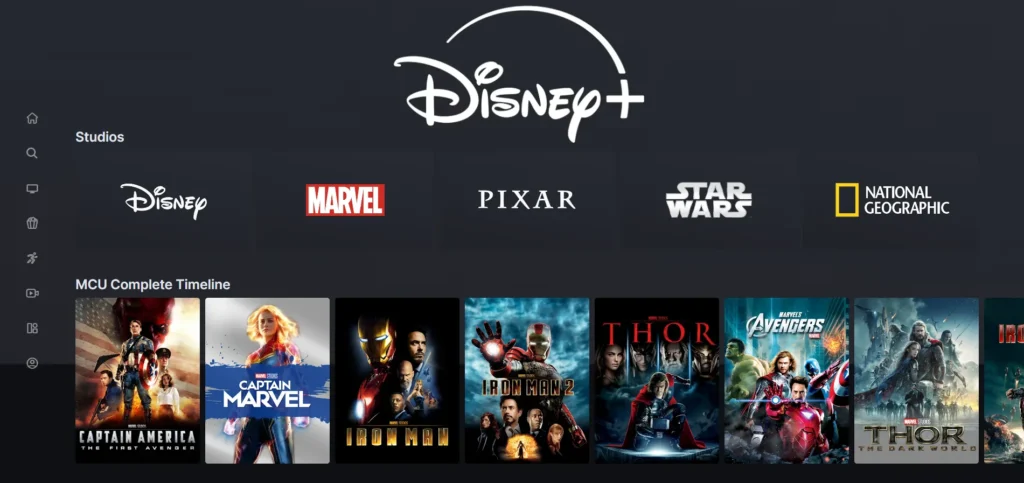
Whether you’re creating a new account or managing an existing one, the process of setting up parental controls on Disney+ is simple and straightforward. Here’s how to get started:
1. Create a Kids Profile
The first step to setting up parental controls on Disney+ is to create a profile for your child. This is especially important because Disney+ allows you to set different restrictions for each individual profile.
To create a kids profile:
- Log into your Disney+ account on your preferred device.
- Go to the profile section by clicking on your profile icon at the top right corner.
- Select “Add Profile” and choose a name and avatar for your child’s profile.
- Activate “Kids Profile” mode by toggling the setting on. This automatically restricts the profile to age-appropriate content and simplifies the interface, making it easier for children to navigate.
A “Kids Profile” ensures that only child-friendly content will be displayed. This includes Disney classics, animated series, and educational content.
2. Set Content Rating Limits
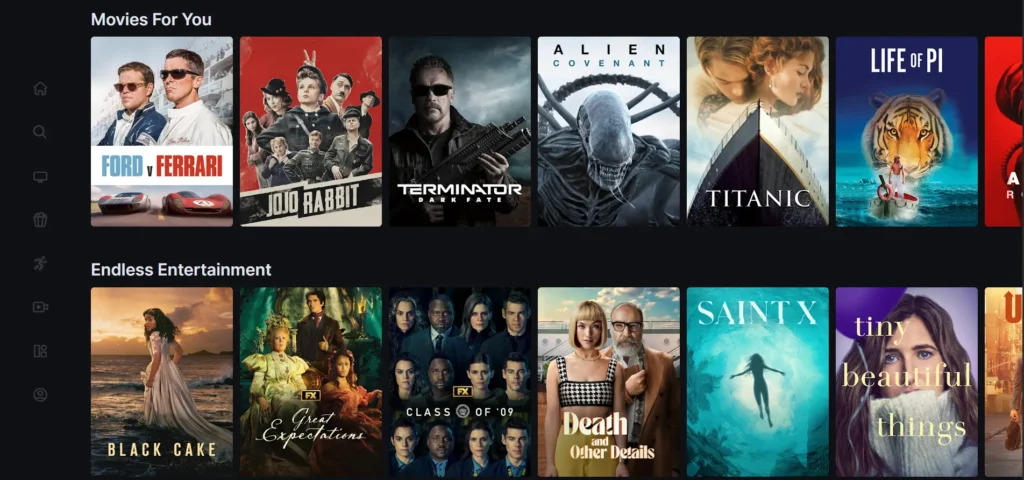
Once the kids profile is created, you can fine-tune what content your child can view by setting an appropriate content rating limit. Disney+ allows you to filter content based on age ratings such as PG, TV-Y, TV-G, PG-13, and more.
Here’s how to set the content rating limit:
- Navigate to your profile and click on “Edit Profiles.”
- Select the profile you want to adjust and scroll down to the “Parental Controls” section.
- Enter your account password for verification purposes.
- Choose the content rating appropriate for your child. For example, if your child is under 7, you might want to set the limit to “TV-Y” or “TV-G.” For older kids, you can select a higher rating like “PG” or “PG-13,” depending on their maturity.
The ratings available range from “TV-Y” (appropriate for all children) to more mature ratings like “TV-MA” (for adult content). Make sure you pick the most suitable rating for your child’s age group.
3. Enable Junior Mode
If you have very young children, Disney+ has a feature called Junior Mode, which is designed to provide a safe viewing experience for kids under the age of 7.
This mode limits the profile to the most age-appropriate content, including animated films, kids’ TV shows, and educational programming.
When Junior Mode is enabled:
- The interface is simplified to make it easy for young children to use.
- Only age-appropriate content is shown, so there’s no risk of kids accidentally stumbling upon a movie or TV show that’s too mature for them.
To enable Junior Mode:
- Go to “Edit Profiles” and select the profile for your child.
- Activate Junior Mode by toggling the option on.
- Save the changes to confirm the settings.
Note that when Junior Mode is enabled, the age rating filter is automatically adjusted to the most child-friendly settings.
4. Set a Profile PIN to Lock Adult Profiles
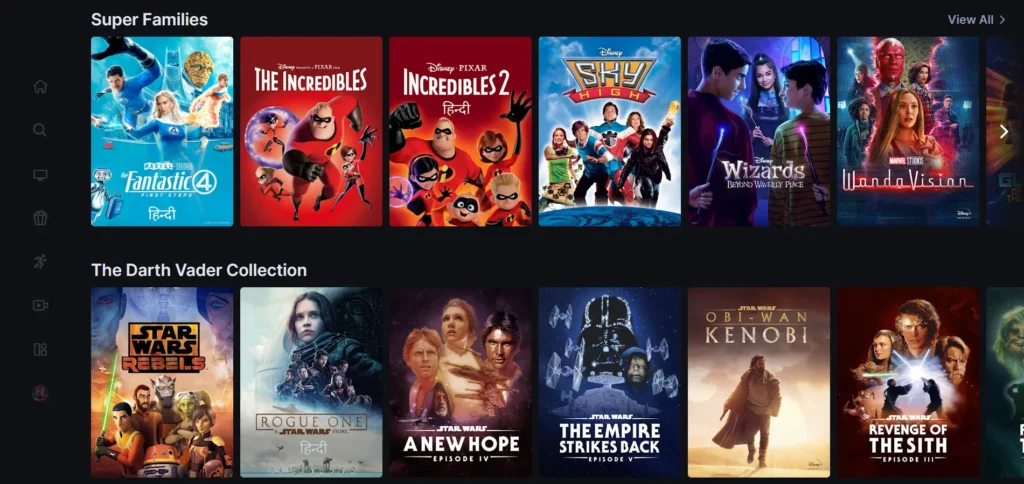
A very important feature of Disney+ parental controls is the ability to set a Profile PIN. This prevents children from switching to adult profiles or changing settings without your permission.
It adds an extra layer of security to ensure that your profile and settings remain protected.
To set a profile PIN:
- Go to “Edit Profiles” and select your profile (or an adult profile).
- Scroll to the bottom and choose the “Profile PIN” option under Parental Controls.
- Create a 4-digit PIN that only you know.
- Save the PIN and make sure it is different from any PINs your children might know.
With this PIN in place, your child cannot change profiles or settings without entering the correct code. This is a must-have feature for any account where children might try to bypass content restrictions.
5. Restrict Profile Creation
One of the risks with Disney+ (and streaming services in general) is that children can create new profiles and bypass restrictions. To prevent this, you can restrict profile creation so that only you can add or edit profiles.
Here’s how to do it:
- Go to Account settings from the main menu.
- Look for the “Restrict Profile Creation” option and toggle it ON.
- Enter your password to confirm the setting.
Once profile creation is restricted, only the account holder can add or edit profiles. This helps prevent children from creating profiles that bypass parental controls.
6. Monitor and Control Screen Time (Additional Tools)
While Disney+ doesn’t offer built-in screen-time management, you can combine its parental controls with other tools to manage how long your child watches content.
For example:
- Use device-level parental controls to limit how long children can use Disney+ on specific devices. Most smartphones, tablets, and smart TVs allow you to set daily time limits for apps like Disney+.
- Establish rules around screen time, such as limiting streaming to a certain amount per day or turning off the TV after a set time.
By using a combination of Disney+ settings and device controls, you can ensure that your children aren’t spending too much time in front of the screen.
Parental Feedback: Real-World Experiences
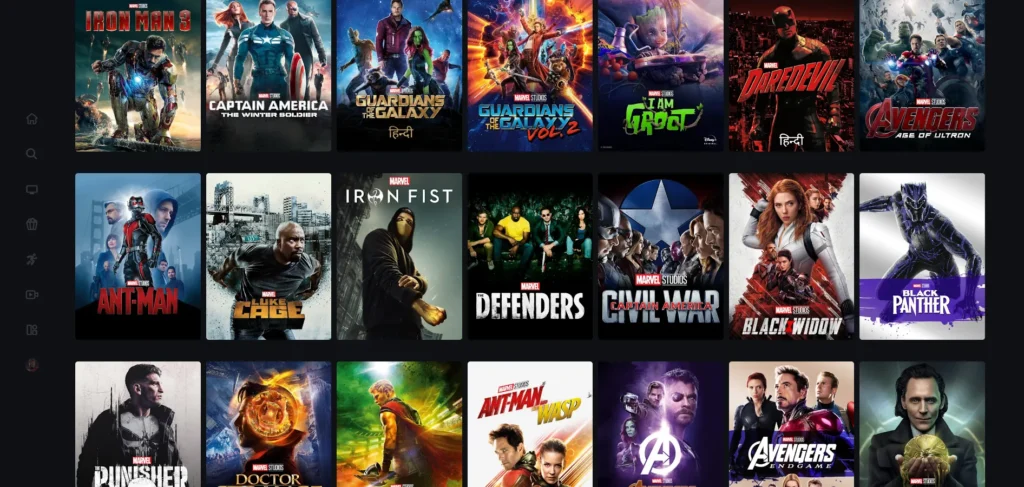
While Disney+ parental controls are a useful feature, some parents have expressed concerns about certain limitations. Here’s a breakdown of some common feedback from users:
1. Limited Customization
One of the main drawbacks is the lack of granular control over specific titles. While you can filter content by rating, there’s no way to block individual movies or shows.
For example, if you set a PG-13 rating, all movies rated PG-13 or lower are accessible, even though some of them might not be appropriate for your child.
2. Junior Mode Limitations
Although Junior Mode is a great feature for younger children, some parents find it too restrictive for slightly older kids. For instance, children who are 7 or 8 might want to watch movies like “Frozen” or “The Lion King,” but Junior Mode won’t show those if they are rated PG.
In this case, parents may need to choose between slightly less-restrictive settings that allow for PG or PG-13 content or stick with Junior Mode.
3. PIN Security Risks
The profile PIN feature is essential for preventing kids from accessing adult content, but it’s not foolproof.
If your password or PIN is saved in a browser or device, children might still find ways to bypass restrictions. Therefore, it’s crucial to disable auto-fill and keep your PIN secure.
4. Lack of Built-in Screen Time Management
Many parents would like to see built-in tools for managing screen time, especially since kids can easily binge-watch shows or movies on Disney+.
Since Disney+ doesn’t offer this functionality, parents often have to rely on external tools or manual supervision.
Final Thoughts: Balancing Safety and Convenience
Disney+ offers solid parental controls, but there are some limitations that parents should be aware of. With the right settings in place, the service can provide a safe and enjoyable viewing experience for children.
However, it’s essential to stay vigilant, especially as your children grow and their content preferences evolve.
By creating separate profiles, setting appropriate content ratings, enabling PINs, and combining Disney+ settings with external tools for screen time management, you can tailor your Disney+ experience to meet the needs of your family.
Just remember: while technology can help protect your kids from inappropriate content, it’s also important to actively engage in discussions about what they’re watching and to provide guidance as they explore the vast world of streaming media.
FAQs
How do I create a kid’s profile on Disney+?
Log into your account, go to Edit Profiles, select Add Profile, and toggle Kids Profile on. This ensures only child-friendly content is shown.
Can I set content rating limits?
Yes! Go to Edit Profiles, select the desired profile, and set an appropriate age-based content rating limit (e.g., TV-Y, PG-13) under Parental Controls.
What is Junior Mode?
Junior Mode is a special setting for younger kids (under 7), which limits content to the safest, most child-friendly titles and simplifies the Disney+ interface.
Can I prevent profile changes?
Yes, set a 4-digit Profile PIN in Edit Profiles to lock adult profiles and prevent children from changing settings or accessing adult content.
How do I manage screen time?
Disney+ doesn’t have built-in screen time limits, but you can use device-level parental controls or establish rules to limit how much time kids spend watching.


