
Sling TV has become a popular alternative to traditional cable television, providing a more flexible and affordable way to stream live TV and on-demand content.
With its variety of packages, Sling TV offers something for everyone, whether you’re into sports, entertainment, or news. But how do you get started with Sling TV?
How do you set it up on different devices, and what should you expect during the process?
In this guide, we will walk you through the steps to set up Sling TV on a variety of devices, including Smart TVs, streaming sticks, smartphones, and computers.
We’ll also cover some of the key features of the service and provide insights into how users feel about Sling TV in 2025. By the end of this article, you’ll have everything you need to make the most of your Sling TV experience.
Why Sling TV?
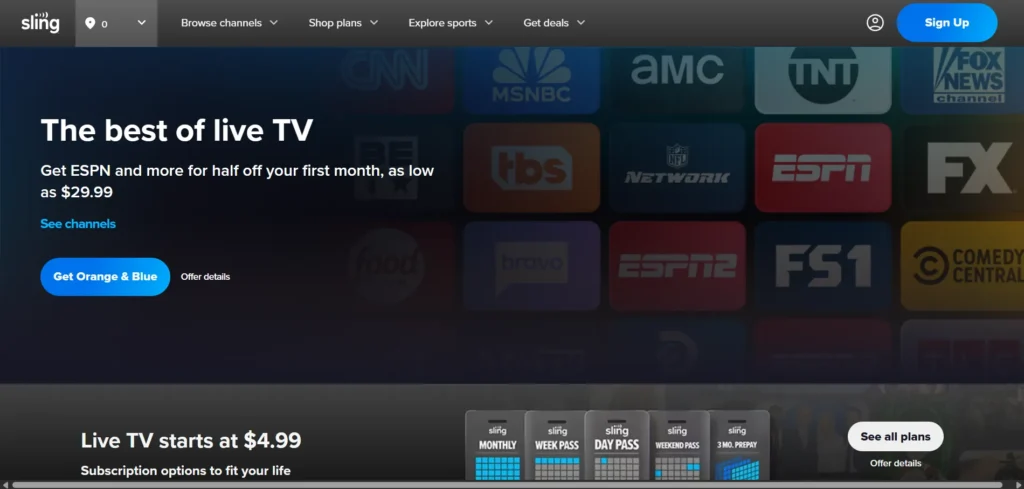
Launched in 2015 by Dish Network, Sling TV offers a live TV streaming service that can be accessed on a variety of devices, from smart TVs and smartphones to streaming boxes and even your computer.
It allows users to watch live TV channels, including news, sports, and entertainment, without the need for traditional cable subscriptions or satellite dishes.
Unlike cable, Sling TV works via the internet, giving you more flexibility in terms of what you watch and when you watch it. There’s no long-term contract, and you can easily cancel or modify your plan as needed.
Pricing and Plans
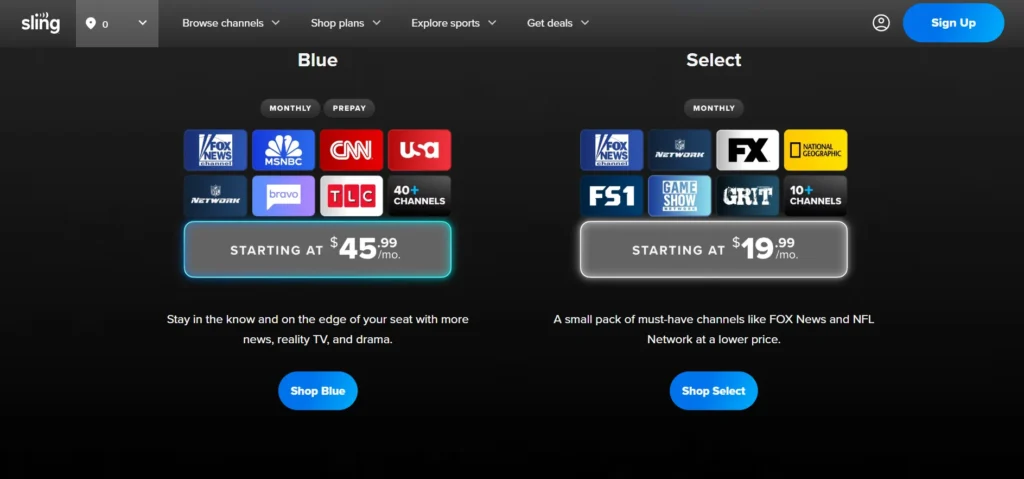
Sling TV offers several pricing tiers, depending on the package you choose. As of 2025, the prices for the base plans are as follows:
- Sling Orange: This plan typically costs around $45.99 per month. It includes popular channels like ESPN, Disney Channel, and CNN.
- Sling Blue: This plan also costs around $45.99 per month and includes channels like Fox, NBC, and MSNBC.
- Sling Orange + Blue: For $60.99 per month, you get the best of both worlds, with access to all the channels in both the Orange and Blue plans.
You can also add premium channels like Showtime, HBO, or Cinemax, and you can purchase add-ons for things like sports or international channels.
Sling also offers a cloud DVR, which allows you to record shows and movies to watch later. The base plan includes 50 hours of storage, but you can upgrade to 200 hours for a fee.
Why Choose Sling TV?
Sling TV stands out because it offers a more affordable way to watch live TV without the high prices of traditional cable or satellite services.
If you’re someone who watches a limited number of channels or prefers to customize your viewing experience, Sling TV could be a great fit.
It’s ideal for those who want flexibility, especially if you’re tired of being locked into a long-term contract.
How to Set Up Sling TV on Different Devices
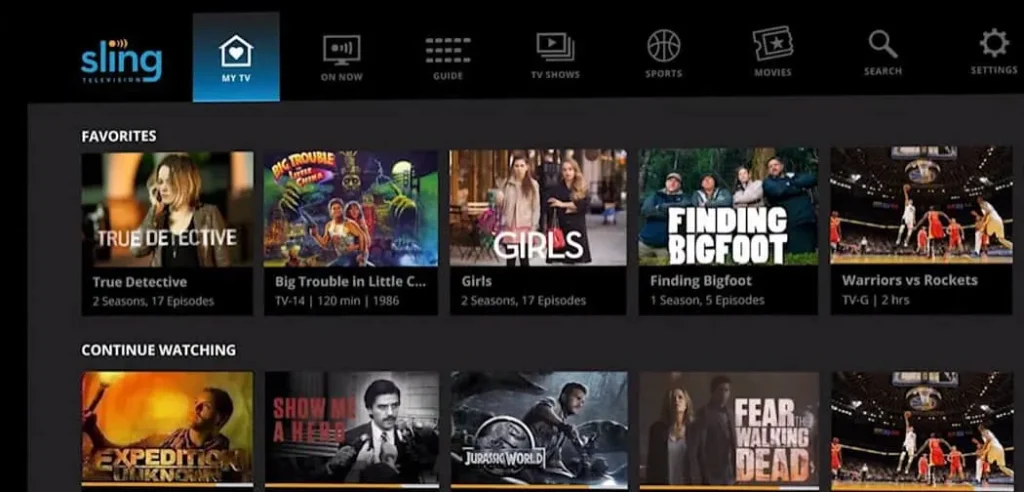
Now that you understand what Sling TV is and why it might be a good choice for you, let’s dive into how to set it up on various devices.
Sling TV is compatible with a wide range of devices, including smart TVs, smartphones, streaming sticks, and computers. Here’s a step-by-step guide for each.
Setting Up Sling TV on Smart TVs
Most modern smart TVs support Sling TV, including brands like Samsung, LG, Vizio, and Sony. The setup process is straightforward, and you can get started in just a few steps:
- Open the App Store on Your Smart TV: Each TV brand has its own app store (Samsung’s Tizen store, LG’s Content Store, etc.). Open it and search for the Sling TV app.
- Download the Sling TV App: Once you’ve found the app, select “Download” or “Install.” The app should automatically install on your TV.
- Open the Sling TV App: After installation, open the app, and you’ll be prompted to log in with your Sling TV account. If you don’t have an account yet, you can create one directly from the app.
- Activate Sling TV: If you’re using the app for the first time, you’ll see an activation code on your TV screen. Use a computer or smartphone to visit Sling’s activation website and enter the code. Once entered, your TV will automatically be activated.
- Start Watching: After activation, you can choose your preferred plan and start watching your favorite shows.
Setting Up Sling TV on Streaming Devices (Roku, Fire TV, Apple TV, etc.)
If you don’t have a Smart TV, or if your TV isn’t compatible with Sling TV, you can use a streaming device like Roku, Amazon Fire TV, or Apple TV. Here’s how to set it up:
- Plug in Your Streaming Device: Connect the device to your TV via HDMI. Make sure it’s powered on.
- Open the App Store: On your streaming device, navigate to the app or channel store.
- Search for the Sling TV App: Use the search function to find the Sling TV app.
- Install the App: Once you find it, select it and click “Install” or “Add Channel.”
- Open the Sling TV App: After the installation is complete, open the Sling TV app from your device’s home screen.
- Activate Sling TV: Just like with Smart TVs, you’ll see an activation code on your screen. Visit the activation website on your phone or computer and enter the code.
- Start Watching: Once activated, you can select your package and start watching Sling TV.
Setting Up Sling TV on Smartphones and Tablets (iOS and Android)
Setting up Sling TV on your smartphone or tablet is one of the easiest options. You can watch your favorite shows on the go with just a few simple steps:
- Download the Sling TV App: Go to the App Store (for iOS devices) or Google Play Store (for Android devices) and search for “Sling TV.”
- Install the App: Download and install the app on your device.
- Open the App: Launch the Sling TV app after installation.
- Sign In or Sign Up: If you already have a Sling TV account, sign in with your email and password. If you’re a new user, you can sign up directly in the app.
- Activate Sling TV: If you’re using the app for the first time, you’ll be asked to activate it by entering a code.
- The code will appear on your phone or tablet, and you can enter it on Sling’s activation website.
- Start Streaming: Once activated, you can start browsing channels and on-demand content to watch.
Setting Up Sling TV on a Computer (Windows, macOS, Linux)
If you prefer to watch Sling TV on your computer, it’s just as easy. Here’s how to set it up on a desktop or laptop:
- Go to the Sling TV Website: Open your preferred web browser and go to Sling TV’s official website.
- Sign In: If you already have a Sling account, click “Sign In” and enter your login credentials. If you’re a new user, you’ll need to sign up for an account.
- Choose Your Package: Once logged in, you can select your Sling TV package. You’ll be prompted to provide payment information and select add-ons if necessary.
- Start Streaming: After logging in and selecting your plan, you can start watching Sling TV directly from your browser. There’s no need to download anything for basic streaming on a computer.
Features and Benefits of Sling TV
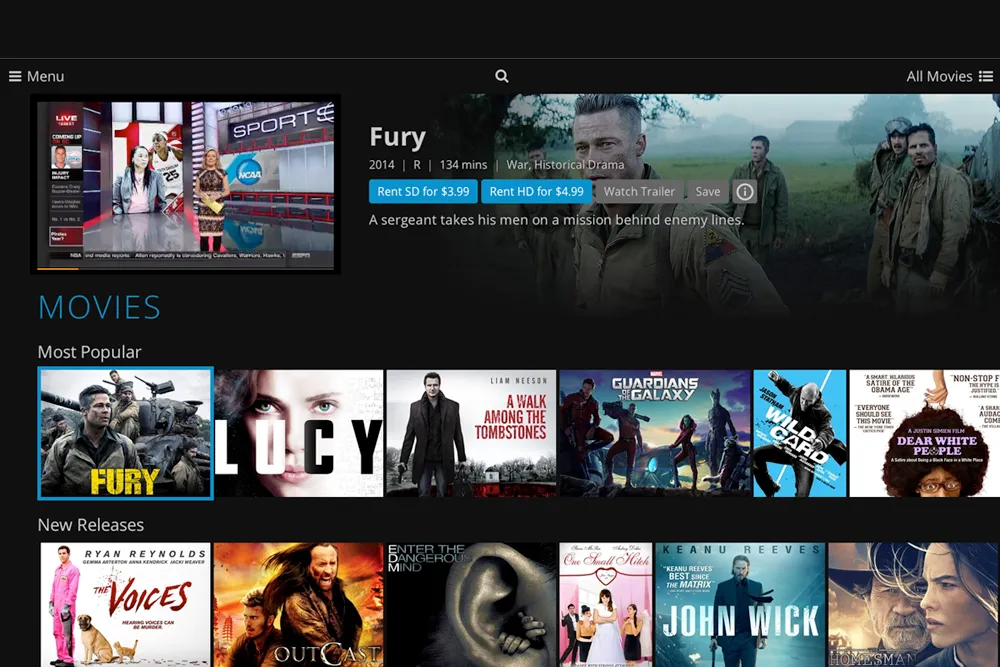
Now that you know how to set up Sling TV on your device, let’s take a closer look at the features and benefits that make this service so appealing.
Customizable Plans
One of the standout features of Sling TV is its customizable plans. You can choose between the Sling Orange and Sling Blue plans, or combine both for the most extensive channel lineup.
If you have specific interests, you can add extra channels, like sports or international networks, without paying for channels you don’t need.
Affordable Pricing
Compared to traditional cable TV, Sling TV offers a much more affordable option. The base plans cost significantly less than many other streaming services, and you can easily upgrade or downgrade your plan as your viewing needs change.
Cloud DVR
Sling TV offers a cloud DVR feature, which allows you to record shows and movies for later viewing. The base plan comes with 50 hours of storage, which is enough for many users. If you need more space, you can upgrade to an unlimited DVR plan.
Multiple Device Support
Sling TV works on a variety of devices, from Smart TVs and streaming boxes to smartphones, tablets, and computers.
This allows you to watch Sling TV on your TV, then continue watching on your phone while you’re on the go.
What People Like and Dislike About Sling TV
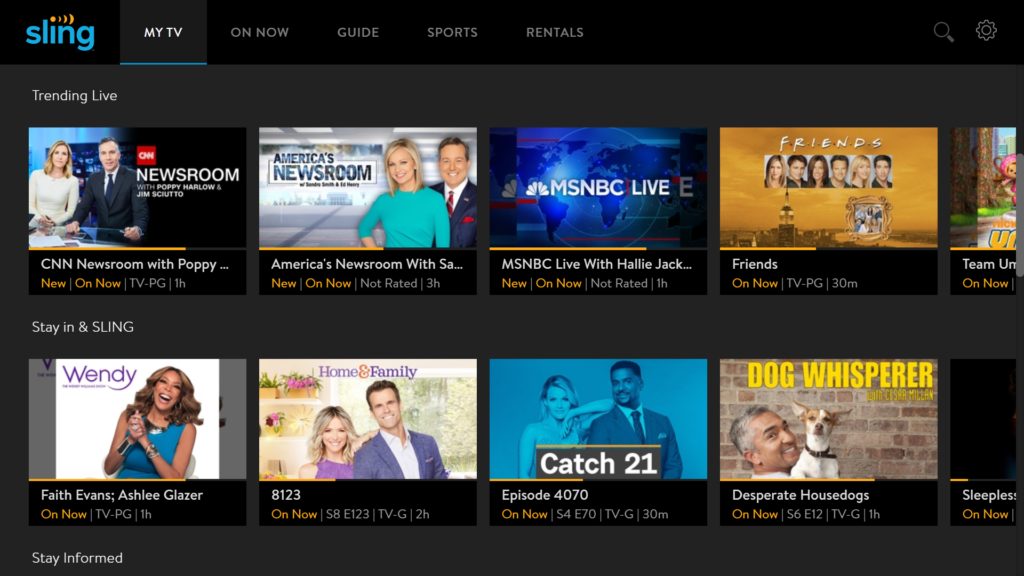
Pros of Sling TV
- Affordable pricing: Sling TV is one of the most cost-effective streaming services available, especially for people who don’t need every channel.
- Flexible plans: You can choose a plan that fits your needs, and easily upgrade or downgrade as required.
- No contracts: Unlike traditional cable, Sling TV doesn’t lock you into a long-term contract. You can cancel anytime without penalties.
- Wide device compatibility: Sling TV works on many devices, making it easy to stream on your preferred screen.
- Cloud DVR: The ability to record content is a great feature, especially if you can’t always watch live.
Cons of Sling TV
- Limited channels: While Sling TV offers a solid selection of channels, it’s not as comprehensive as traditional cable or satellite TV. You may miss out on local channels or premium content unless you subscribe to extra packages.
- No local networks in some areas: Sling TV does not offer local channels like ABC, CBS, or NBC in all regions.
- Limited simultaneous streams: Depending on your plan, you might only be able to stream on one or three devices at once, which can be limiting for large families.
- Add-ons can get expensive: While the base plans are affordable, adding extras like sports channels, international content, and additional DVR storage can raise the price quickly.
Conclusion: Is Sling TV Right for You?
Sling TV offers an affordable and flexible streaming solution for people who want to cut the cord without sacrificing their favorite shows.
The setup process is quick and easy, and you can access Sling on a variety of devices. However, it’s not for everyone.
If you want a large number of channels or local networks, Sling TV might not be the right fit. But if you’re looking for an affordable, customizable streaming service, Sling TV is definitely worth considering.
By following the steps outlined above, you’ll be ready to start watching Sling TV on your device in no time. Enjoy the freedom of live TV without the hassle of traditional cable!
FAQs
What devices can I use Sling TV on?
Sling TV works on a wide range of devices, including Smart TVs, Roku, Amazon Fire TV, Apple TV, smartphones, tablets, and computers.
How much does Sling TV cost?
Sling TV’s base plans are priced at around $45.99 per month for either the Sling Orange or Sling Blue plan. You can get both plans together for $60.99 per month.
Do I need a contract for Sling TV?
No, Sling TV does not require a contract. You can cancel or modify your subscription at any time without penalties.
How does Sling TV’s DVR work?
Sling TV includes 50 hours of cloud DVR storage with the base plan. You can upgrade to unlimited DVR for an additional fee.
Can I watch Sling TV on multiple devices at once?
Yes, depending on your plan. Sling Orange allows one stream, Sling Blue allows up to three, and Sling Orange + Blue allows up to four simultaneous streams.


