
In today’s fast-paced world, sports enthusiasts are no longer limited to watching games through traditional cable subscriptions.
Services like DAZN have revolutionized how we consume sports content, allowing us to stream live matches, replays, and highlights directly to our devices.
Whether you prefer to watch from the comfort of your living room on a smart TV or catch the action on your mobile device while traveling, DAZN has made it possible to enjoy your favorite sports wherever you are.
If you’re wondering how to watch DAZN on your Smart TV or mobile device, this guide will cover everything you need to know.
From installation steps to troubleshooting common issues, we’ll help ensure you get the best possible viewing experience.
What is DAZN?

Before diving into the technicalities, let’s first understand what DAZN is and why it’s become a popular choice for sports fans.
DAZN is a subscription-based sports streaming service that offers a wide range of live and on-demand sports content, including boxing, MMA, soccer, baseball, and more.
Unlike traditional cable subscriptions, DAZN operates entirely over the internet, meaning you don’t need cable TV to access its content. With DAZN, users can watch live sports events, replays, documentaries, and highlights on multiple devices.
DAZN is available in more than 200 countries, and it supports various platforms, making it accessible to a wide audience.
One of the standout features of DAZN is its device compatibility, meaning you can stream your favorite sports content not only on smart TVs but also on smartphones, tablets, laptops, and gaming consoles.
How to Watch DAZN on Smart TVs
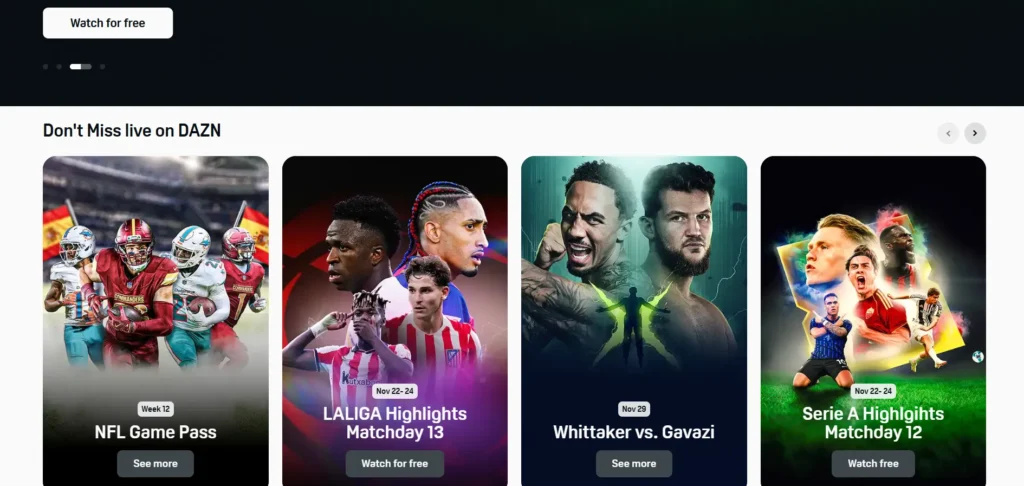
Smart TVs have become the go-to device for watching sports at home. With DAZN’s app readily available on many major smart TV platforms, setting up and watching sports on your big screen is easy. Here’s how you can stream DAZN on various smart TV brands:
1. Samsung Smart TVs
Samsung has a wide range of smart TVs powered by Tizen OS, and the DAZN app works seamlessly on most of their newer models.
Steps to Install DAZN on Samsung Smart TV:
- Check your TV’s software version: Ensure your Samsung TV is running Tizen OS 2015 or later. Older models may not support the DAZN app.
- Connect your TV to the internet: You can use either Wi-Fi or a wired Ethernet connection. A wired connection generally offers more stability, especially for streaming sports.
- Go to the Samsung Smart Hub: Press the Home button on your Samsung remote to open the Smart Hub.
- Search for DAZN: Use the search function to find the DAZN app.
- Install the DAZN app: Select the app and click “Install.” Once installed, you’ll see the DAZN icon in your Apps section.
- Log in or sign up: Open the app and either log into your existing DAZN account or sign up for a new one.
- Start streaming: Browse through live events, on-demand replays, and other sports content.
Troubleshooting Tips:
- If you can’t find the DAZN app, ensure your TV’s firmware is up to date. Sometimes, the app may not be available if the firmware needs updating.
- If the streaming quality is poor, consider using a wired Ethernet connection instead of relying on Wi-Fi.
2. LG Smart TVs
LG’s webOS-powered smart TVs are another popular platform for DAZN users. The installation steps are similar to those for Samsung, with only slight differences.
Steps to Install DAZN on LG Smart TV:
- Go to the LG Content Store: Press the Home button on your LG remote and navigate to the LG Content Store.
- Search for DAZN: Use the search bar to find the DAZN app.
- Install the app: Select the DAZN app and click “Install.” After installation, the app will appear in your app list.
- Log in to your DAZN account: Open the DAZN app, sign in using your credentials, or create a new account if you don’t have one.
- Begin streaming: Once logged in, you can watch live sports events or catch up on highlights and replays.
Troubleshooting Tips:
- If the app doesn’t show up, check your TV model and its software version. Older LG models may not support DAZN natively.
- For smoother streaming, connect your TV to the internet using a wired connection, especially if you experience buffering or poor video quality.
3. Sony and Other Android TVs
Sony TVs and other models powered by Android TV also support DAZN. The installation process is pretty straightforward.
Steps to Install DAZN on Android TV:
- Open the Google Play Store: On your Android TV, open the Google Play Store app.
- Search for DAZN: In the search bar, type “DAZN” and select the app from the search results.
- Install the app: Click the “Install” button to download and install DAZN on your TV.
- Sign in to your account: Once the app is installed, launch it and log in with your DAZN credentials.
- Start watching: You can now enjoy all the live sports events and on-demand content DAZN offers.
How to Watch DAZN on Mobile Devices
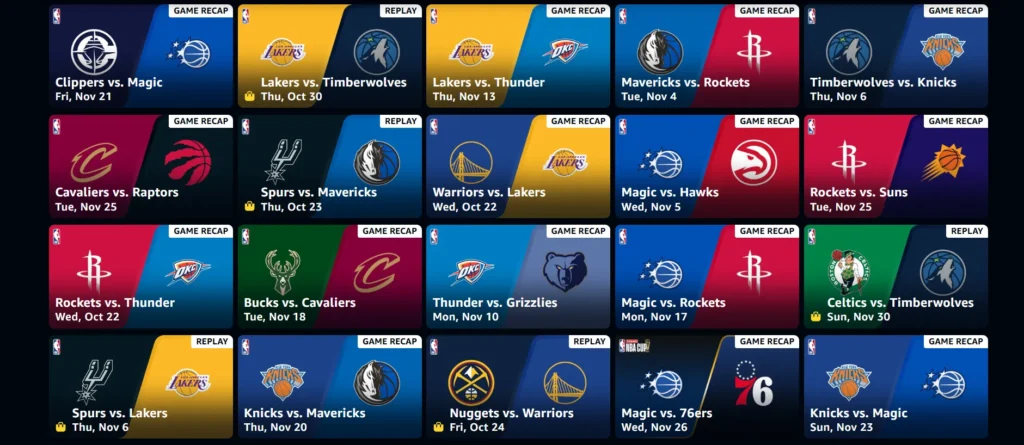
Watching DAZN on your smartphone or tablet allows you to stay connected to live sports even while on the move. Whether you’re commuting, traveling, or simply away from home, DAZN ensures you don’t miss a match.
1. Watch DAZN on Android Devices
DAZN is fully compatible with most Android smartphones and tablets running Android 5.0 or later.
Steps to Install DAZN on Android:
- Check your Android version: Ensure your device is running Android 5.0 or newer.
- Go to the Google Play Store: Open the Play Store app on your Android device.
- Search for DAZN: In the search bar, type “DAZN” and select the app from the list.
- Install the app: Tap “Install” to download the DAZN app to your phone or tablet.
- Log in or sign up: Once installed, open the app and log in to your existing DAZN account or create a new one.
- Start streaming: Browse through the available sports content and start watching your favorite events.
Troubleshooting Tips:
- If the app isn’t available in your region, you may need to use a VPN service to access it.
- Make sure you’re connected to a stable internet connection (Wi-Fi or mobile data) for uninterrupted streaming.
2. Watch DAZN on iPhone and iPad
For iOS users, DAZN provides a seamless experience on both iPhones and iPads.
Steps to Install DAZN on iOS:
- Ensure your iOS version is up to date: DAZN requires iOS 11 or later.
- Open the App Store: Open the App Store on your iPhone or iPad.
- Search for DAZN: Type “DAZN” in the search bar and select the app.
- Download the app: Tap the “Get” button to download DAZN to your device.
- Sign in or sign up: Once the app is installed, open it and log in or create a new account.
- Stream your favorite sports: You’re now ready to watch live sports, replays, or highlights on your iPhone or iPad.
Troubleshooting Tips:
- If you’re experiencing issues with video playback, ensure that your iOS version is up to date and restart the app.
- For smoother streaming, use a Wi-Fi connection rather than mobile data, especially if you’re watching in high quality.
Troubleshooting Common Issues on Smart TVs and Mobile Devices

Even though DAZN is generally reliable, there can be occasional hiccups. Below are some common issues users may encounter and how to resolve them.
1. App Not Appearing in the Store
If DAZN doesn’t appear in the app store on your smart TV or mobile device, it could be due to several reasons:
- Device or Region Restriction: Make sure your device is compatible with DAZN. Some older smart TVs may not support the app. Additionally, DAZN may not be available in all countries, so check if it’s accessible in your region.
- Outdated Device Software: Update your device’s software to the latest version to ensure compatibility with DAZN.
2. Buffering or Poor Streaming Quality
If you’re experiencing buffering or poor video quality, consider these solutions:
- Check Your Internet Speed: DAZN recommends at least 9 Mbps for HD streaming. Test your internet connection to ensure it’s fast enough for streaming.
- Switch to a Wired Connection: If possible, connect your device to the internet via Ethernet for a more stable connection, especially if you’re watching on a smart TV.
- Close Other Applications: If you’re using mobile data or Wi-Fi, ensure no other apps are consuming bandwidth, which could affect streaming quality.
3. Login Issues
If you’re having trouble logging into your DAZN account, here’s what you can do:
- Double-Check Your Credentials: Ensure you’re entering the correct username and password. If you’ve forgotten your password, you can reset it through the app.
- Account Verification: Make sure your DAZN account is active and that your subscription is up to date.
Conclusion
Watching DAZN on Smart TVs and mobile devices is a convenient way to access a vast array of live sports events and on-demand content.
With its compatibility across various platforms, DAZN has made it easier for sports fans to watch the action unfold, whether they’re at home or on the go.
By following the simple installation steps outlined for both Smart TVs and mobile devices, you can start enjoying your favorite sports in no time.
And with the troubleshooting tips provided, you can resolve most common issues and ensure a smooth streaming experience.
So whether you’re settling in for a major game on your big screen or catching the highlights during your lunch break, DAZN is a great way to stay connected to the sports you love.
FAQs
How do I watch DAZN on my Smart TV?
Go to your TV’s app store, search for the DAZN app, install it, and log in with your account details.
Is DAZN available on mobile devices?
Yes, DAZN is available on both Android and iOS devices. Simply download the app from the Google Play Store or Apple App Store, sign in, and start streaming.
What is the minimum internet speed required for DAZN?
DAZN recommends at least 9 Mbps for HD streaming. A higher speed may be required for smoother performance, especially for 4K content.
Can I use DAZN outside my home?
Yes, you can watch DAZN anywhere, as long as you have an internet connection. It’s perfect for streaming on mobile devices when you’re on the go.
What should I do if the DAZN app is not working?
If the DAZN app is not working, try restarting the app, checking for software updates, or reinstalling the app. If issues persist, ensure your internet connection is stable and fast enough.


